How to Request a Change to Your Figurine 3D Preview
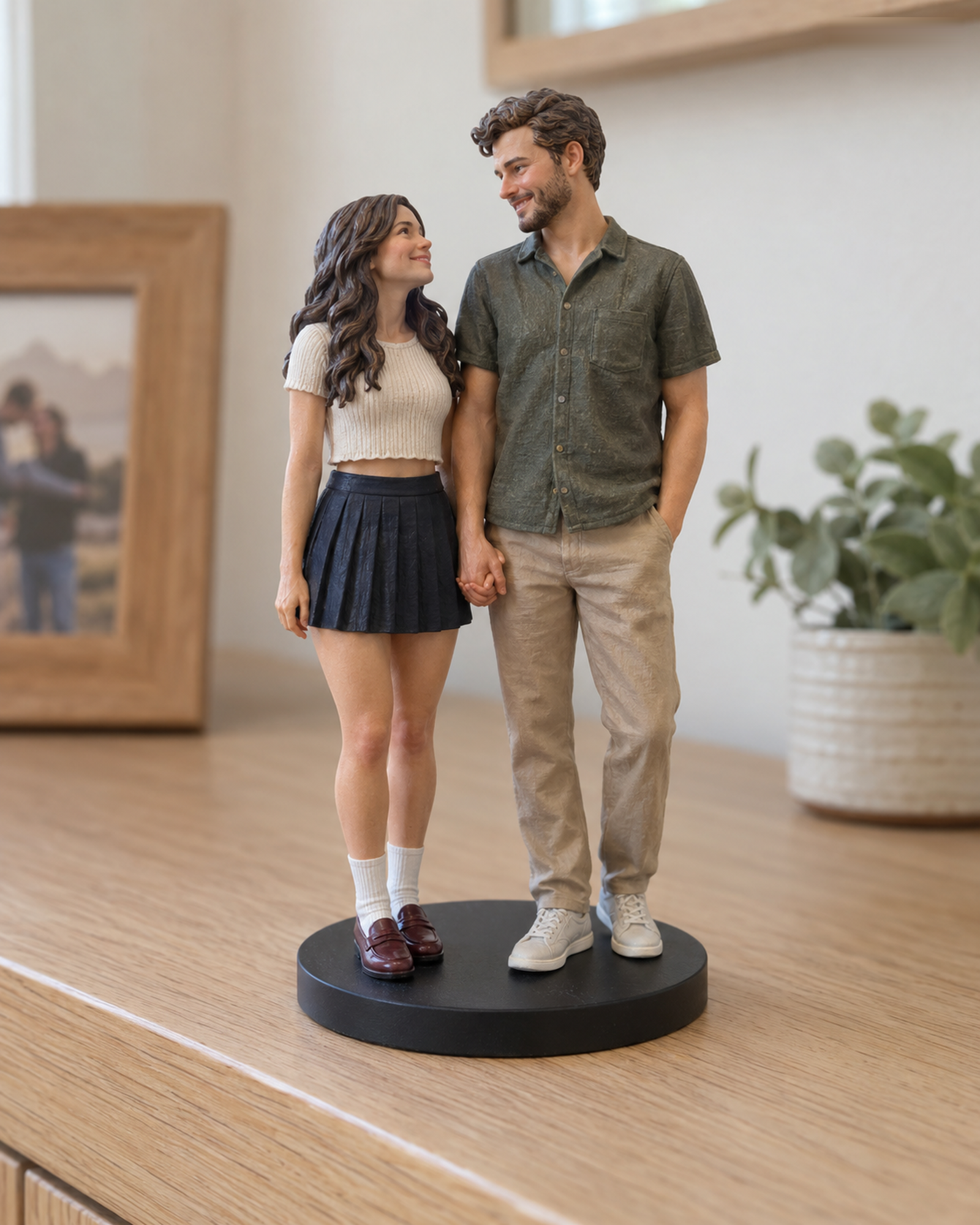
The identified final 3D preview is the checkpoint before physical production. You can compare it with the photos and specifications you confirmed, ask questions, and make an explicit decision. Merely opening the preview or remaining silent is not approval. The final-preview checklist helps you review people, pets, clothing and composition systematically.
Report a mismatch against the confirmed brief
Point to the reference image or instruction that shows the issue, then describe the visible difference. “The white patch should be on the left paw, as in photo 2” is easier to assess than “make the pet more accurate.” A wrong subject, clothing detail or pose compared with confirmed instructions is a maker-side deviation. The published Preview & Revision Policy explains that such deviations are corrected without a customer-requested revision charge.
Identify a new request separately
A different outfit, added accessory, new person, new pet or changed scene may be outside the accepted scope even if you ask while reviewing the preview. Customer service assesses the extra work. Before chargeable work begins, the team must explain the proposed scope, amount and timing impact and obtain your explicit agreement. There is no blanket promise of a fixed number of included free revision rounds.
Approve the exact version you intend to produce
When all requested corrections are resolved, approve the identified final preview explicitly. If you are not ready, say what remains open; a request for clarification is not approval. After approval, further change requests depend on whether physical production has actually started. For the full order journey, compare the Realistic and Q-Style buying pages, and read the Refund & Cancellation Policy before paying.
Write a useful preview revision
Describe the visible difference, name the reference or approved brief it should match, and identify the area on the preview. Keep one issue per bullet. Label new design requests separately so the team can explain whether they change scope, price, or timing before you approve.
Want to compare another provider? Figurly describes review and approval of its own 3D model before printing. Custom providers differ in when preview, revision, payment, and production occur, so use Forever In Form's own policies for this order.
Continue with the Realistic configurator or the Q-Style configurator. For unlisted combinations, use Custom Quote.